
Write and run SQL
A focused editor with database-aware assistance and clear results.
Open a query with Command–T. The editor supports PostgreSQL syntax highlighting, completion, formatting, hover information, and diagnostics from the bundled language server.
Run exactly what you intend
Select SQL to run just that selection. Otherwise, place the caret in the statement you want to execute and press Command–Return. Use the Run menu for additional execution actions. Confirm the active connection and transaction state before executing writes.
SELECT p.name AS project, p.status,
       t.name AS team, p.budget
FROM studio.projects p
JOIN studio.teams t ON t.id = p.team_id
ORDER BY p.name;
This example uses the synthetic schema shown in the screenshots. Substitute tables from your own database.
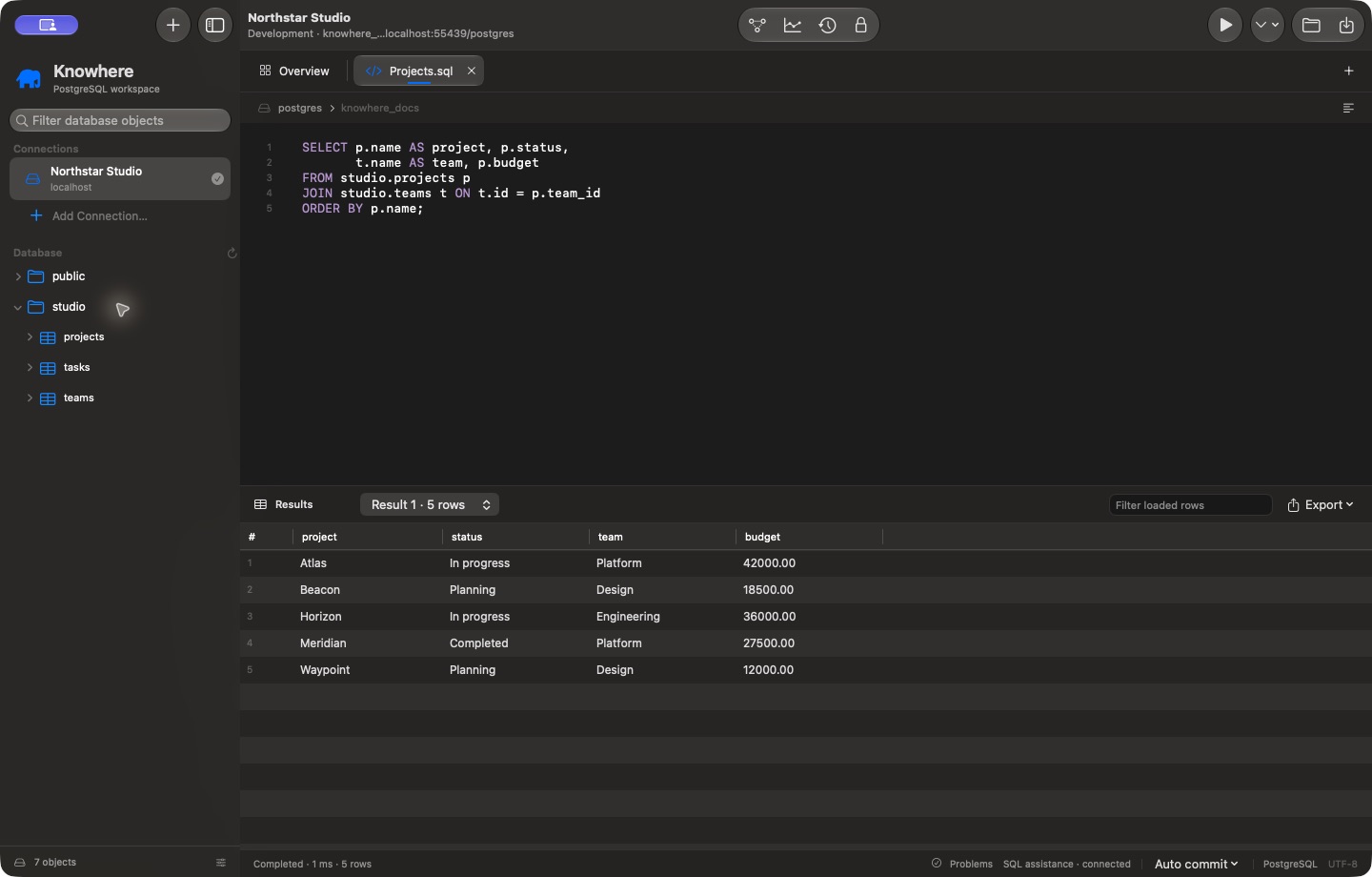
Completion and diagnostics
Connect to a database to get its table and column suggestions. Type a table alias followed by a dot to request matching columns. Control–Space opens completion explicitly. Control–Shift–Space opens Quick Help.
Errors and warnings appear in the editor and Problems view. Choose Query → Show Problems to see the list. Assistance checks are advisory: PostgreSQL still validates the statement when you run it, and some errors depend on actual values or execution conditions.
If metadata changes outside Knowhere, refresh the database objects. Use Query → Restart SQL Assistance if the language service needs restarting. Basic local suggestions remain available if the service is unavailable.
Formatting, results, and files
Use Shift–Command–F to format SQL. Filter loaded result rows to narrow what is already on screen; this does not rerun the query or filter the server's entire table. Export result data deliberately and treat exported files as potentially sensitive.
Open a SQL file with Command–O. Save your document with Command–S while a SQL tab is active. Review the file's contents before sharing it, including comments and literal values.
History and transactions
Saving query history is optional per connection and is off by default. When enabled, stored history is retained for up to 30 days and expired entries are removed during workspace load/save. Open History to reuse or clear entries.
Use the Query menu to begin, commit, or roll back a transaction. A failed transaction may require rollback before further work. Reconnecting does not automatically replay your SQL. If a connection drops during a write, check the server's actual state before retrying.